
How Can We Help?
Setting up email in Outlook – Step-by-step instructions
This written checklist replaces the previous Outlook setup video. Use it to connect an existing Rhino-hosted mailbox; it does not create a new email account.
Step 1: Confirm your mailbox
Use the secure Webmail guide to check that you can sign in with your full email address and mailbox password. If the mailbox does not exist yet, follow Create an email account first.
Step 2: Collect your secure settings
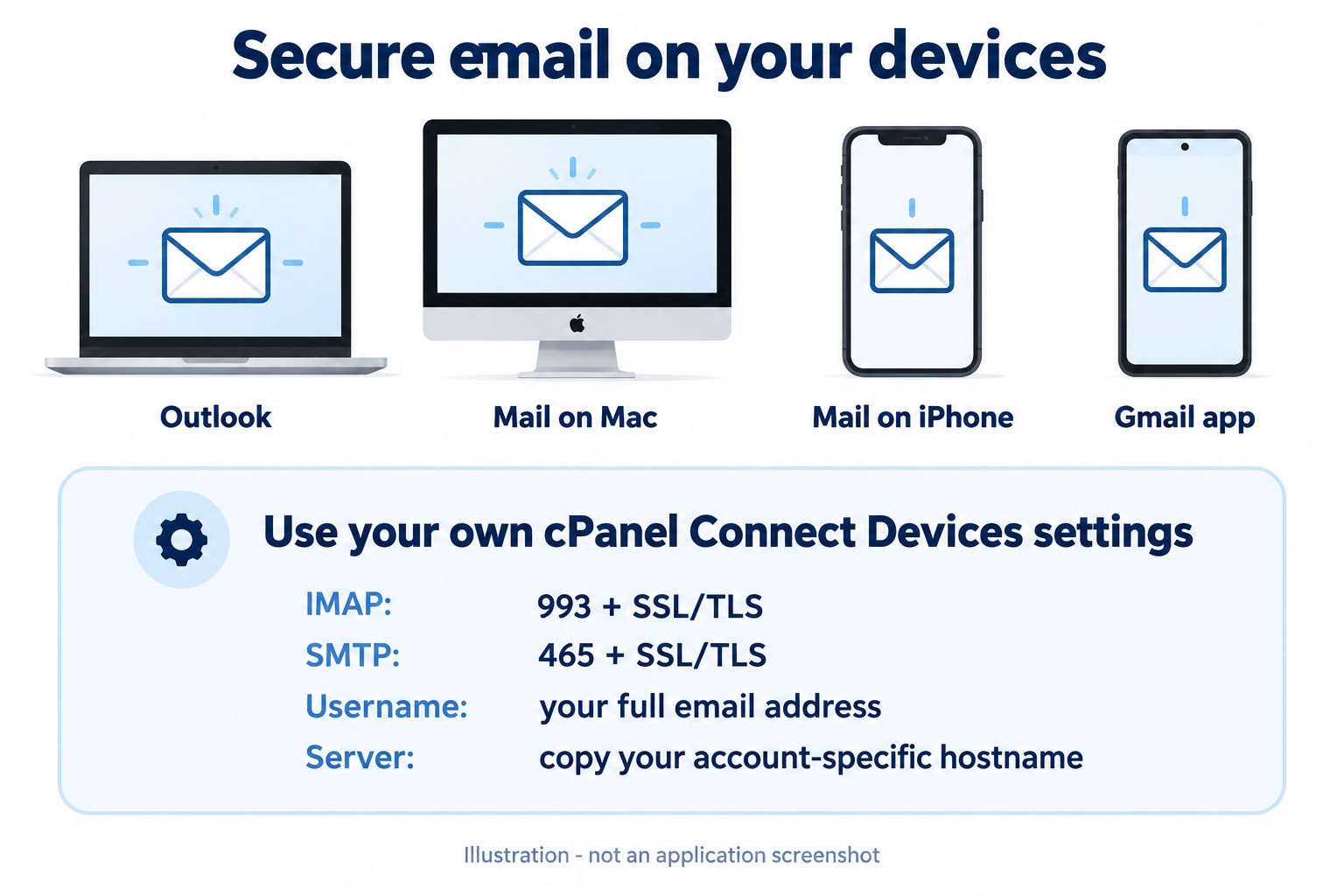
In cPanel, open Email Accounts, select Manage beside the mailbox and choose Connect Devices. Copy the incoming IMAP hostname, outgoing SMTP hostname, ports and security methods. Read the email server settings guide if you need help. Your mailbox password is separate from your client-portal password.
Step 3: Open Outlook account setup
- New Outlook for Windows: open View > View settings, then Accounts > Your accounts > Add Account.
- Classic Outlook for Windows: select File > Add Account.
Step 4: Enter your account
Enter the complete email address and follow Outlook’s prompts. Use your mailbox password. If automatic detection does not work, use the manual IMAP route in the full Outlook setup guide.
Step 5: Check both connections
Use the account-specific secure settings from Step 2. Our sample uses IMAP 993 and SMTP 465 with SSL/TLS. SMTP requires authentication with the full email address and mailbox password. Do not assume a hostname from another customer’s example applies to you.
Step 6: Finish and test
- Complete setup and allow the mailbox to synchronise.
- Send a short message to another address you control.
- Reply from that address and confirm that the reply appears in Outlook and Webmail.
- Check that the sent message appears in the expected Sent folder.
Step 7: Resolve errors safely
If receiving works but sending fails, follow Cannot send emails. Stop at certificate warnings and ask support to check the server name or certificate. Do not disable SSL/TLS or your security software.
Application navigation source: Microsoft Outlook setup documentation. This is a written guide, not a transcript of the removed recording.
Need assistance? Contact Rhino Hosting Support. Include the relevant error and application version, but never send your password.
Content reviewed: 29 September 2026. Application steps checked against the linked official documentation. Illustrations are explanatory; no live application setup or send/receive test is claimed.