
How Can We Help?
Learn how to Archive Mails in Outlook
In Outlook for Windows, decide whether you want to organise your Inbox or preserve mail outside the server mailbox. These are different jobs.
Move messages to the Archive folder
- Select the message or messages you want to organise.
- Choose Archive in Outlook’s mail controls.
- Open the account’s Archive folder and confirm that the messages are there.
- If you archived a message by mistake, move it back to Inbox.
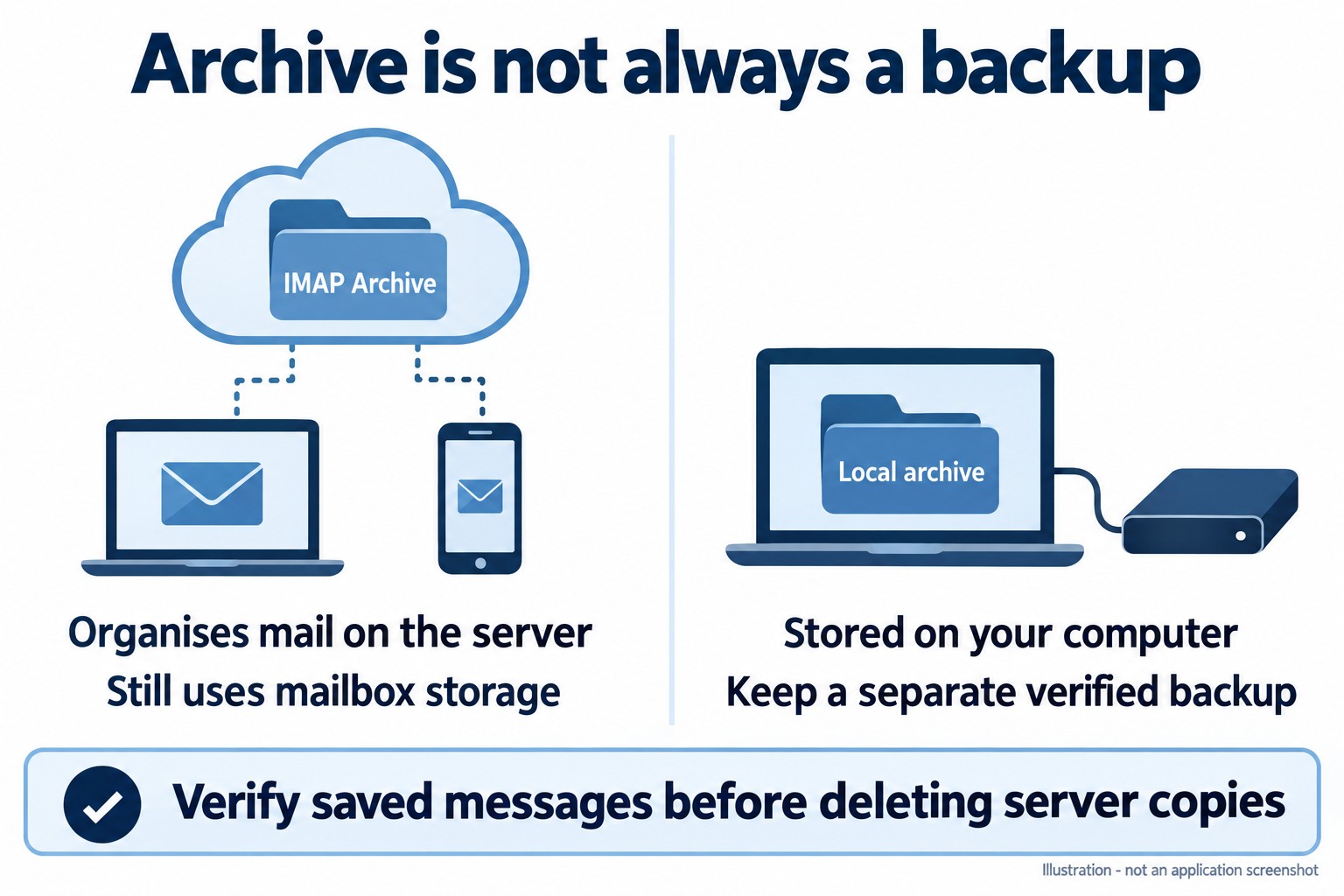
For an IMAP mailbox, a server-synchronised Archive folder still counts towards mailbox storage. It is not a separate backup and is different from a Microsoft 365 Online Archive service.
Create a separate local export
First let Outlook finish downloading the folders and messages you need. An export can only preserve the data actually available to Outlook.
- Classic Outlook: open File > Open & Export > Import/Export.
- Select Export to a file, then Outlook Data File (.pst).
- Select the correct mailbox or folder and include its subfolders.
- Choose a new local file location and finish the export. Avoid placing an actively used PST inside a synchronised OneDrive folder.
- Open the exported file in Outlook and check representative old and new messages and attachments.
- Keep a separate backup of the verified archive.
New Outlook: Microsoft’s current export route is Settings > Files > Export > Get started. Follow the wizard and check the current feature requirements before relying on PST support in your installed build.
If your aim is to free server space
Exporting creates a copy; it does not itself clear the server mailbox. Only consider removing server copies after verifying the archive and its backup. IMAP deletions can synchronise to other devices. Ask support for help before bulk deletion if you are unsure.
Sources: Archive in Outlook for Windows and Microsoft’s PST export guide. Mac users should follow the Mac archive guide.
Need assistance? Contact Rhino Hosting Support. Include the relevant error and application version, but never send your password.
Content reviewed: 29 September 2026. Application steps checked against the linked official documentation. Illustrations are explanatory; no live application setup or send/receive test is claimed.