
How Can We Help?
How to Set up mail on an Apple Mac
Add your Rhino-hosted mailbox to Apple’s Mail app on your Mac using its secure IMAP and SMTP settings. This guide uses manual account details; it does not require downloading an unverified configuration profile.
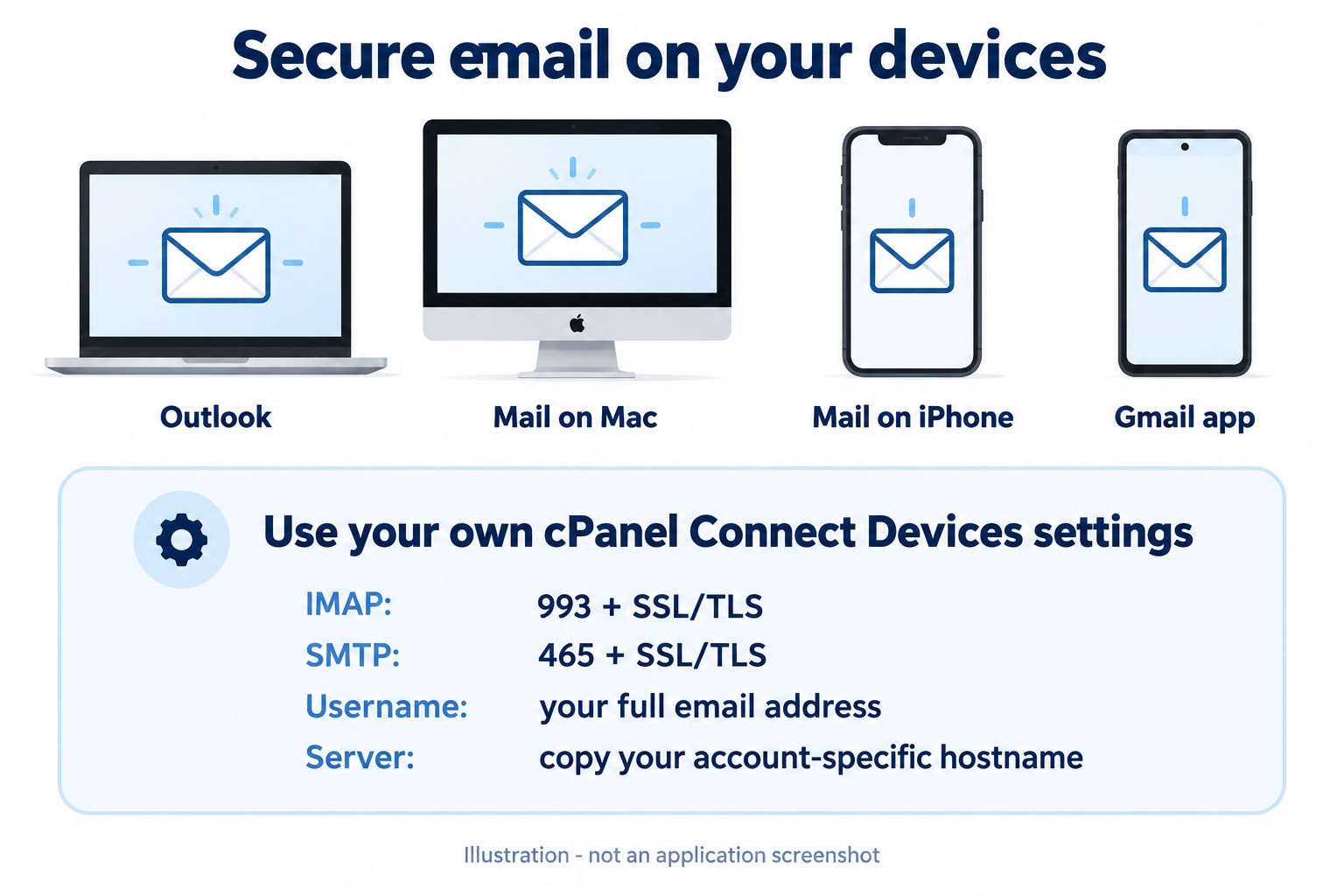
Before you begin, confirm that your mailbox works in Webmail and open cPanel > Email Accounts > Manage > Connect Devices. Keep your full email address, mailbox password and account-specific secure server settings available. See the email server settings guide. Do not use a Microsoft, Google or Apple password for a Rhino-hosted mailbox.
Add the account
- Open Mail, then choose Mail > Add Account.
- Enter your email address and continue. If your version asks you to choose a provider, use the option for another mail account for a Rhino-hosted mailbox.
- Enter your name, full mailbox address and mailbox password when requested.
- If Mail cannot find the account automatically, choose IMAP and enter the incoming and outgoing hostnames from Connect Devices. Use the full address for authentication.
- Complete the prompts with Mail enabled for the account.
Check the server settings
In Mail, open Mail > Settings > Accounts, select the mailbox and open Server Settings. Compare both incoming and outgoing settings with cPanel. If you need manual port controls, Apple’s documentation explains the Automatically manage connection settings option. Use TLS/SSL and the ports supplied for your account.
Check sending and receiving
- Wait for the initial mail synchronisation to finish.
- Send a short test to another address you control and reply from that address.
- Confirm the received reply and Sent folder in both the app and Webmail.
If a certificate warning appears, stop and check the hostname and certificate with support. Keep SSL/TLS enabled. If Webmail works but the app fails, capture the exact error without exposing credentials.
Sources: Apple’s Mail account guide and Server Settings guide. Select the guide version matching your macOS release.
Need assistance? Contact Rhino Hosting Support. Include the relevant error and application version, but never send your password.
Content reviewed: 29 September 2026. Application steps checked against the linked official documentation. Illustrations are explanatory; no live application setup or send/receive test is claimed.