
How Can We Help?
Add an email account to Outlook
Follow the section for your Windows version of Outlook. New Outlook and Classic Outlook use different menus; a successful account-added message should be followed by a send-and-receive check.
Before you begin, confirm that your mailbox works in Webmail and open cPanel > Email Accounts > Manage > Connect Devices. Keep your full email address, mailbox password and account-specific secure server settings available. See the email server settings guide. Do not use a Microsoft, Google or Apple password for a Rhino-hosted mailbox.
New Outlook for Windows
- Open View > View settings, or File > Account info.
- Open Accounts > Your accounts, then choose Add Account under Email accounts.
- Enter the full Rhino-hosted email address and continue through account setup.
- Use the mailbox password. If prompted for manual settings or an account type, choose IMAP and enter the incoming and outgoing values from Connect Devices.
- Review any Microsoft cloud-synchronisation or privacy notice before agreeing. Finish the setup prompts, then check the mailbox.
Classic Outlook for Windows
- Select File > Add Account.
- Enter your email address. Try the automatic setup first.
- If manual setup is needed, return to Add Account, expand Advanced options, select Let me set up my account manually, then Connect.
- Select IMAP. Enter the mailbox’s incoming and outgoing server settings.
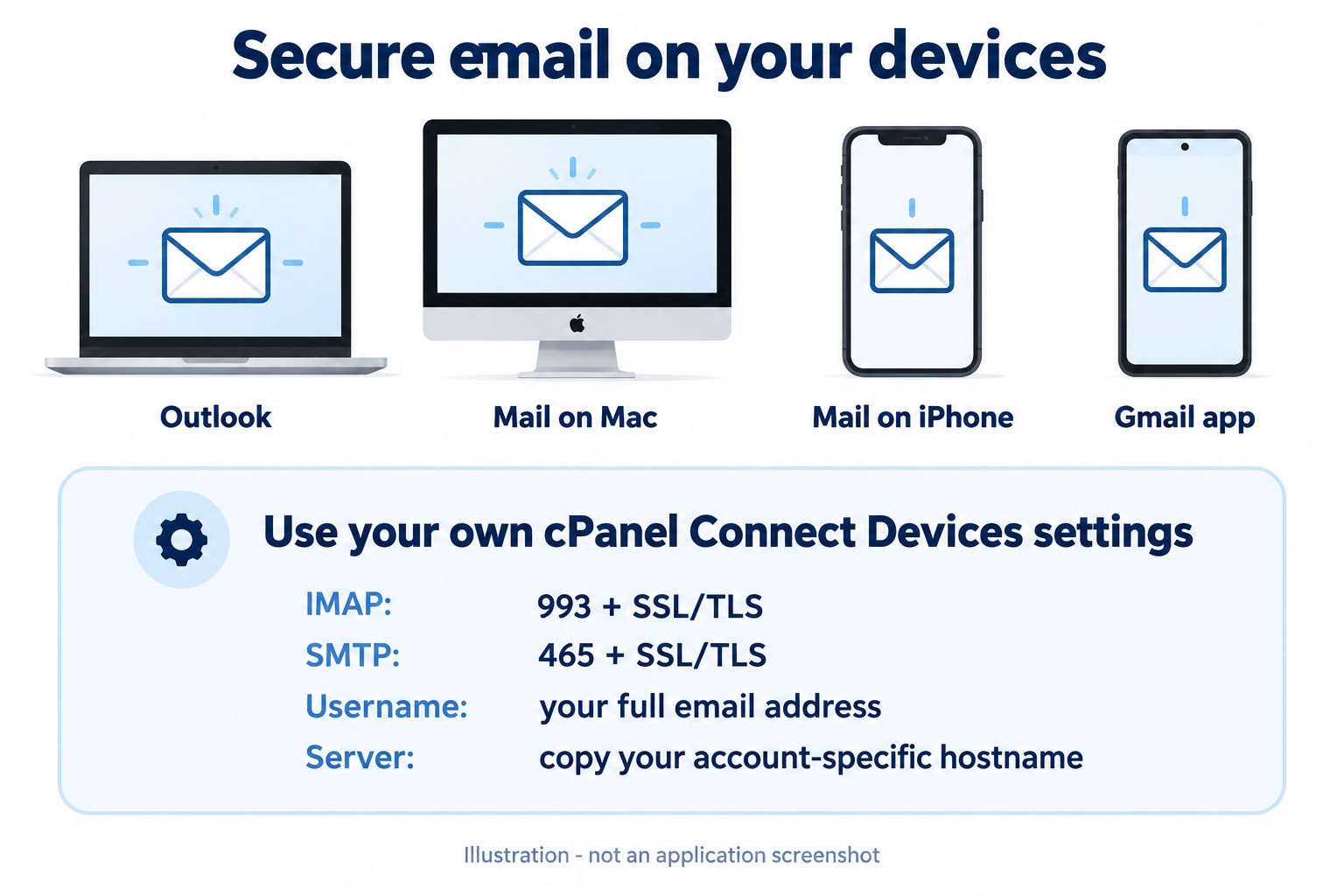
- Match the secure ports and encryption exactly. Our checked sample uses IMAP 993 and SMTP 465 with SSL/TLS. Use your own cPanel values if different.
- Enter the mailbox password and select Connect. Complete the remaining prompts.
Outgoing mail requirements
SMTP requires authentication. Use the full mailbox address as the username and its password. If Outlook receives but cannot send, compare its outgoing settings with cPanel rather than changing the incoming account at random.
Check sending and receiving
- Wait for the initial mail synchronisation to finish.
- Send a short test to another address you control and reply from that address.
- Confirm the received reply and Sent folder in both the app and Webmail.
If a certificate warning appears, stop and check the hostname and certificate with support. Keep SSL/TLS enabled. If Webmail works but the app fails, capture the exact error without exposing credentials.
Source: Microsoft’s New and Classic Outlook setup instructions. Menus can vary with application updates.
Need assistance? Contact Rhino Hosting Support. Include the relevant error and application version, but never send your password.
Content reviewed: 29 September 2026. Application steps checked against the linked official documentation. Illustrations are explanatory; no live application setup or send/receive test is claimed.