
How Can We Help?
How to access your email via webmail?
Webmail lets you open your mailbox in a browser without installing an email app. You will need the full email address and the password for that mailbox.
Open Webmail from cPanel
- Sign in to cPanel for the domain that hosts your mailbox.
- Open Email Accounts.
- Select Manage beside the mailbox, then select Check Email.
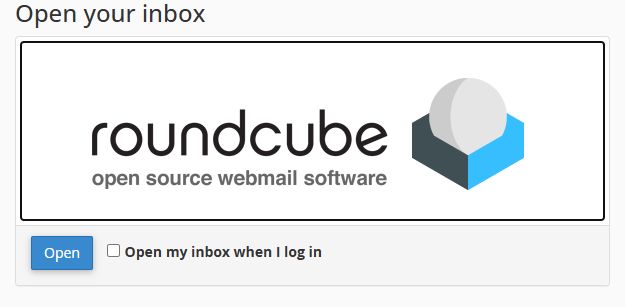
- cPanel opens the Webmail home screen. Select Open under Roundcube to open your inbox. You can select Open my inbox when I log in if you want cPanel to open the inbox automatically on a later Webmail sign-in.
Enter the full email address as the username and the password for that mailbox if you are asked to sign in. Your mailbox password may differ from your cPanel or client-area password.
Direct Webmail address
cPanel also documents a secure Webmail address in this format: https://example.com:2096. Here, example.com is only an example. The correct hostname and TLS certificate can vary by domain and server. If the address for your domain does not open securely, use Email Accounts > Manage > Check Email in cPanel.
If you cannot sign in
- Check that you entered the full email address and the password for the mailbox.
- Confirm the mailbox is present in Email Accounts in cPanel.
- If you do not know the mailbox password, use the mailbox controls in cPanel to set a new one.
- If the problem continues, contact Rhino Hosting Support and include the domain and the exact error message. Do not send your password.
Instructions reviewed: 29 September 2026. Screenshots: cPanel 138.0.10, Jupiter interface.