
How Can We Help?
How to change your email password from Roundcube Webmail
If you can sign in to your mailbox in Roundcube, you can change its password through Webmail Home. This changes the password for that email account. It does not change your Rhino Hosting client-area or cPanel password.
Change your password
- Sign in to Webmail with your full email address and current mailbox password, then open Roundcube.
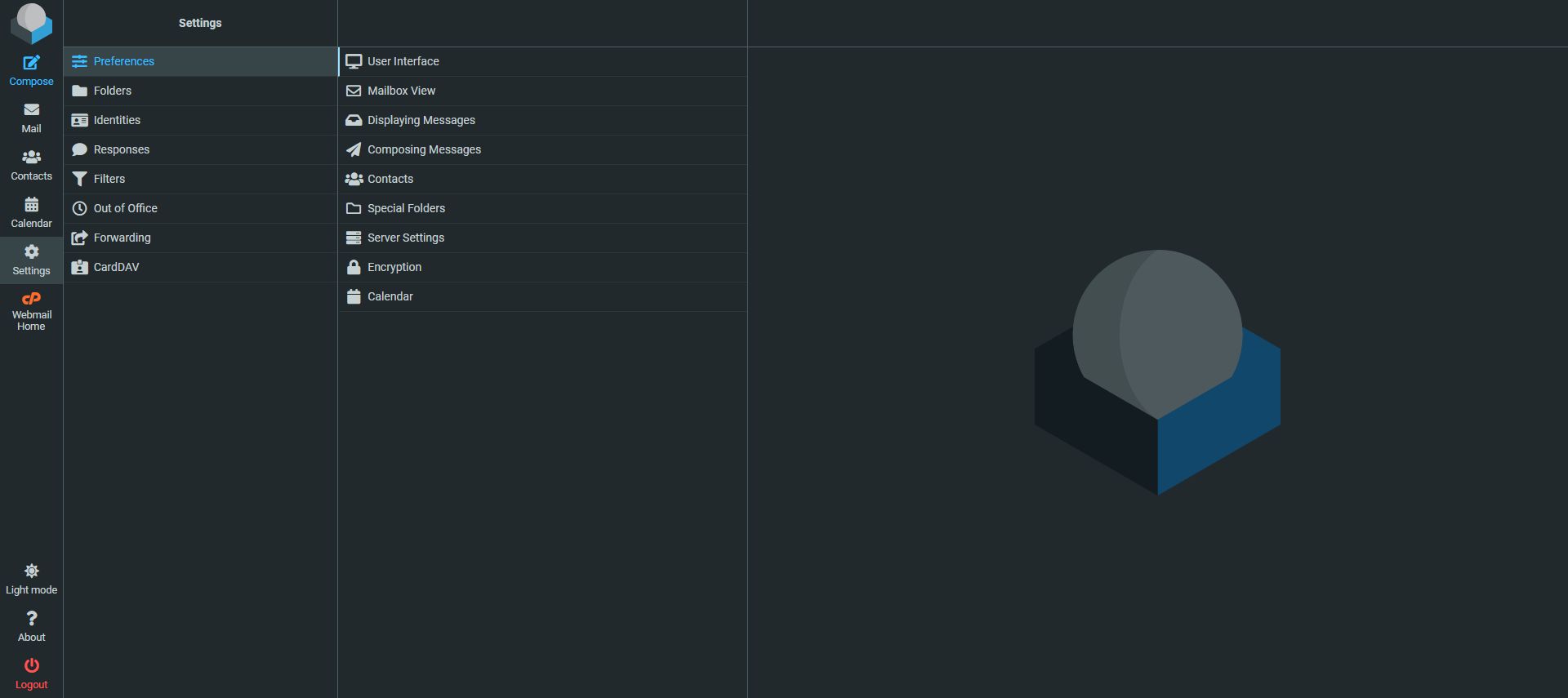
- In Roundcube, select Webmail Home in the left-hand menu. The password control is on the Webmail Home page, not under Roundcube Settings.
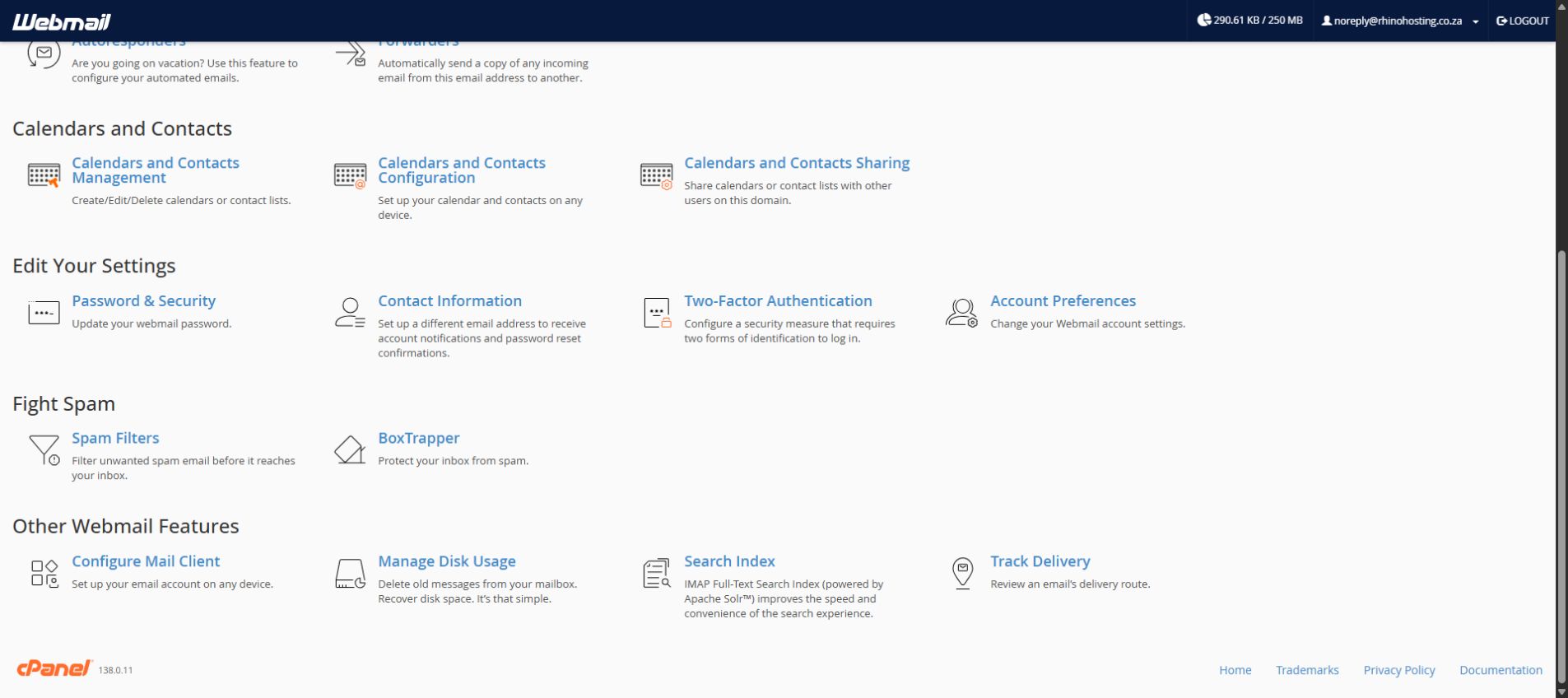
- On Webmail Home, scroll to Edit Your Settings and select Password & Security.
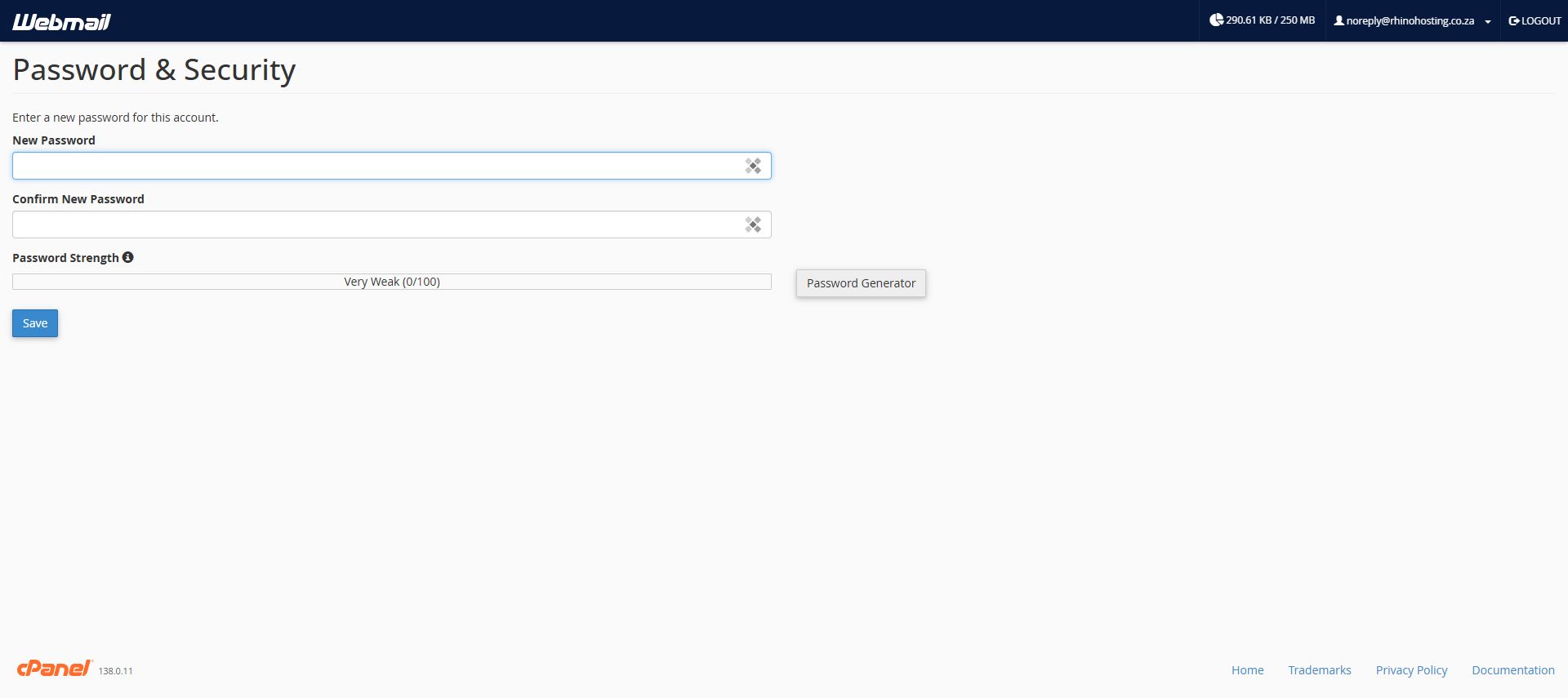
- Enter your chosen password in New Password and enter it again in Confirm New Password. Check the Password Strength indicator. You can also use Password Generator to create a strong password. Use a unique password that you have not used for another account.
- Select Save. Follow any confirmation or error message shown on the page.
After changing the password
Update the saved password in any email application or device that uses this mailbox, such as Outlook or a phone mail app. Use your password manager to store the new password securely. Do not send it to anyone by email or support ticket.
If you cannot sign in to Webmail, ask your account administrator to reset the mailbox password in cPanel, or contact Rhino Hosting Support. You will need access to the mailbox to use the Webmail method above.
Instructions reviewed: 30 September 2026. Screenshots: cPanel Webmail 138.0.11 and Roundcube.